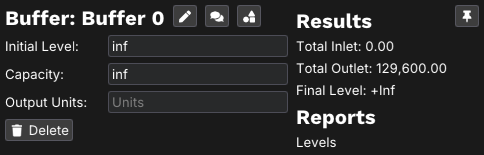
In addition to the navigation bars, individual nodes can be configured directly from the flowchart. Clicking on any node opens its context menu, where you can:
- Edit the node's name or description
- Add comments specific to that node
- Switch the node to a compatible type (when available)
This provides a fast, visual way to adjust properties while keeping your focus on the overall model layout.
Left-clicking on any node while in cursor mode will open up a context menu. Here you can change and update attributes specific to that node. There are three icons beside the name of the node that offer the following options:
| Icon | Name | Description |
|---|---|---|
 |
Description | Edits the Description, or specific name, of the selected node. |
 |
Comments | Opens a comment window for that specific node. These notes will be saved along with the model and attached to that node. Notes saved here only serve as documentation, and do not impact the function of the model. |
 |
Switch Node Type | This feature is presently only available for certain kinds of nodes. This allows you to change the node into a similar type of node (often going from things like a basic buffer node to a more specialized node that still serves primarily as a buffer) |