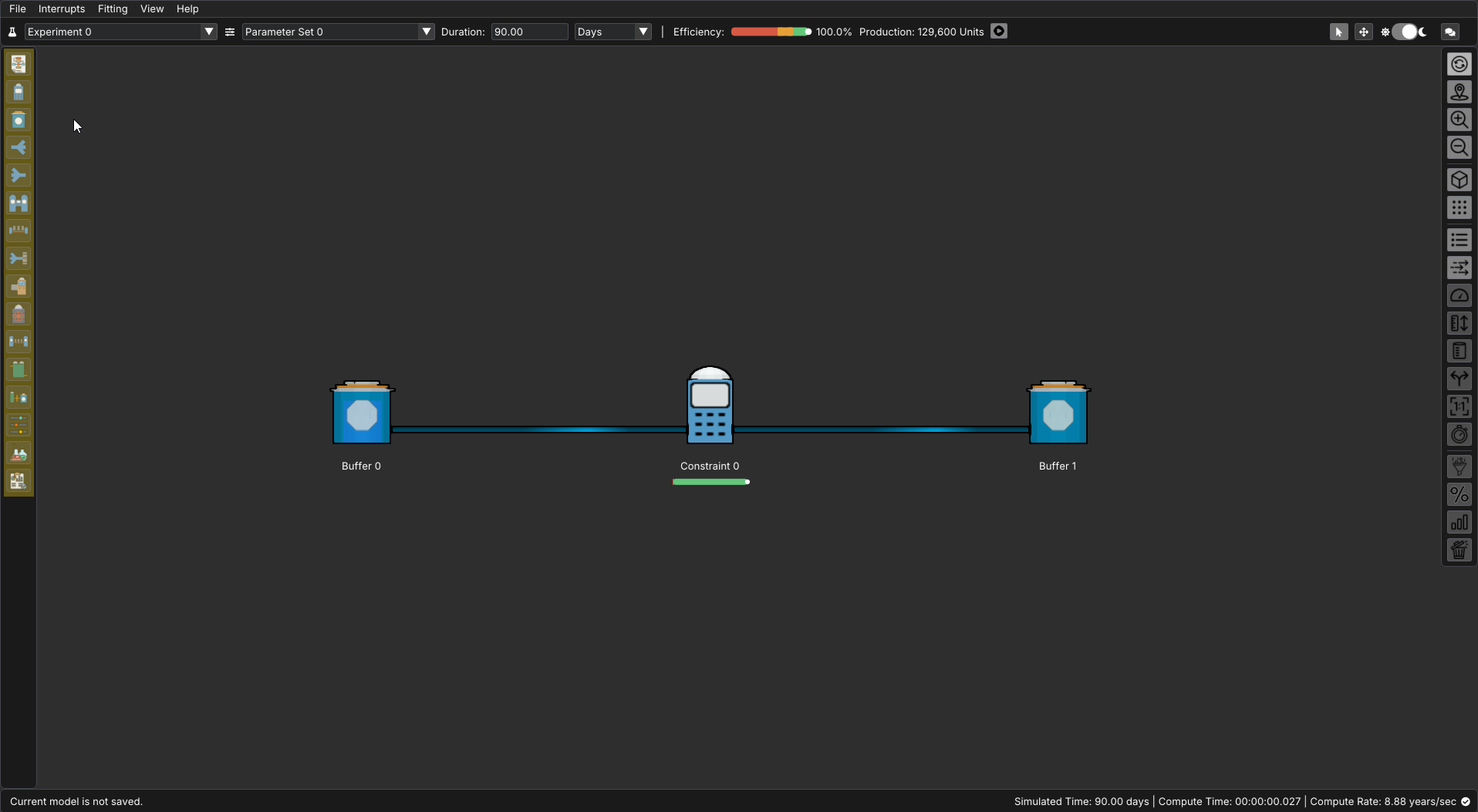
The left navigation bar is where you configure and edit the structure of your model, along with its supporting settings. Each icon opens an editor focused on a specific part of the workflow, including node configuration, parameter sets, experiments, and analysis.
Use this panel to:
- Define and modify node properties
- Adjust settings for different node types
- Configure parameter sets and experiments
- Review compiled analysis results
Switching between these editors allows you to refine your model incrementally—moving from structure, to configuration, to results as needed.
The left navigation bar includes the editing panes for each type of node, as well as the parameter and experiments settings. It includes the following options
| Icon | Name | Description |
|---|---|---|
 |
Flowchart Editor | Shows a text breakdown of the nodes and connections in the current model |
 |
Constraint Editor | Inspect and modify constraint nodes in the current model. A constraint limits the flow rate of material and can experience interrupts. |
 |
Buffer Editor | Inspect and modify buffer nodes in the current model. A Buffer is a storage node with capacity and volume tracking. |
 |
Split Editor | Inspect and modify split nodes in the current model. A split takes one input and divides it across multiple outputs. |
 |
Merge Editor | Inspect and modify merge nodes in the current model. A merge takes multiple inputs and causes them to flow into one output |
 |
Conversion Editor | Inspect and modify conversion nodes in the current model. A conversion node handles a change in material from one form to another. |
 |
Conveyor Editor | Inspect and modify conveyor nodes in the current model. A conveyor node facilitates transit with volume tracking. The volume held on the conveyor is cannot accumulate. |
 |
Assembly Editor | Inspect and modify assembly nodes in the current model. An assembly combines multiple components into one new form. |
 |
Converter Editor | Inspect and modify converter nodes in the current model. A converter is a single node representing the same as a conversion and constraint node together. |
 |
Material Resupply Editor | Inspect and modify material resupply nodes in the current model. A material resupply node is effectively a material supply buffer and a constraint as one node. |
 |
Accumulating Conveyor Editor | Inspect and modify accumulating conveyor nodes in the current model. An accumulating conveyor node facilitates transit with volume tracking. The volume held on the conveyor can accumulate to "fill" gaps in capacity. |
 |
Batch Filler Editor | Inspect and modify batch filler nodes in the current model. A batch filler is a buffer that undergoes a filling and emptying cycle. |
 |
Batch Processor Editor | Inspect and modify batch processor nodes in the current model. A batch processor is a constraint fed by a filling and emptying cycle. |
 |
Parameter Set Editor | Shows information and editing options for parameter sets for the current model |
 |
Experiment Editor | Shows information and editing options for experiments for the current model |
 |
Analysis | Shows compiled results from the current experiment and parameter set |
Within most editors, additional icons are available to change how information is displayed. These allow you to view nodes in table form, edit properties individually, import or export settings, and access contextual information about each node type.
| Icon | Name | Description |
|---|---|---|
 |
Table Editor | Displays a table of all nodes of the selected type within the current model |
 |
Form Editor | Displays a list of all nodes of the selected type within the model. Clicking on a node brings up more of the properties for that specific node |
 |
Export Settings | Exports the current settings for the selected node type as a .csv file |
 |
Import Settings | Imports the current settings for the selected node type as a .csv file |
 |
Info | Displays information about the selected node type and it's applications. This is an excellent starting point to asses if a node is a good fit to represent a situation. This option will be available even when there are 0 nodes of the selected type in the current model. This is an excellent starting point when deciding whether a node type fits your real-world process. |