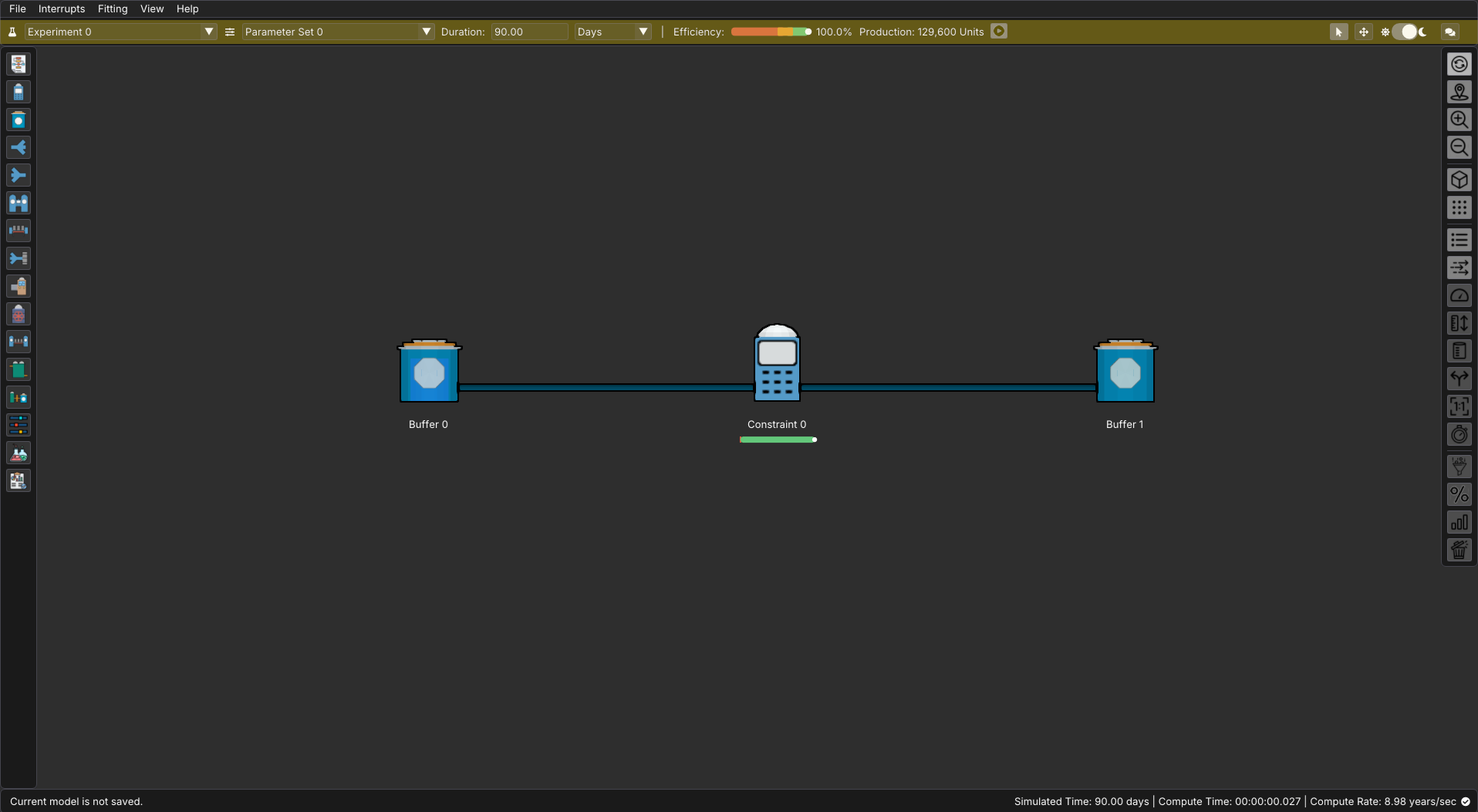
The top navigation bar provides high-level controls and feedback for your current model and experiment.
Efficiency and Production Results
The most important indicators on the top bar are the Efficiency Gauge and Production Throughput, located to the right of the run duration controls. After running a simulation, these display the overall efficiency percentage and total production quantity for your model.
If your model has a structural problem—such as disconnected nodes or an incomplete flow path—you will see a  warning icon instead of numbers. This means ReliaSim cannot calculate results because the model structure is invalid.
Clicking the warning icon opens a Validation Errors popup that lists each issue found in your model:
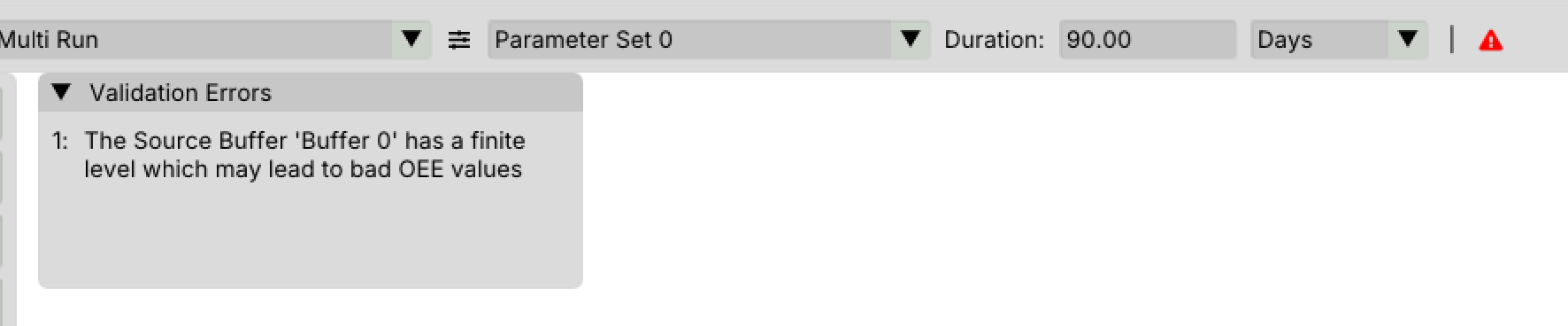
Use these messages to identify and fix the problems—once all validation errors are resolved, the warning icon will be replaced by your Efficiency and Production results.
Controls and Features
From here you can:
- Select parameter sets and experiments
- Adjust experiment duration
- View overall efficiency and production throughput
- Enter Replay mode to step through simulation results
- Switch between cursor and move modes
- Toggle between light and dark themes
- Add model-level comments
This bar serves as the central hub for running simulations and reviewing system-wide performance. The rest of the features in this bar are as follows:
| Feature | Name | Description |
|---|---|---|
 |
Efficiency Gauge | Represents the overall efficiency of the model with the current settings |
 |
Production Throughput | Represents the total quantity produced at the current settings |
 |
Replay Button | Allows you to replay the simulation on a timeline and see the status of each node at any point along the simulated window. Replay allows you to diagnose bottlenecks, starvation, and blocking by stepping through the simulation timeline. |
 |
Cursor | The default navigation mode for adding and editing nodes |
 |
Move | Use this option to switch to moving nodes with left-click |
  |
Light/Dark Mode | Toggles between the light and dark mode of ReliaSim's UI |
 |
Model Comments | Opens a text window where notes or comments can be kept and saved alongside the model. |
The replay feature is one of the most powerful tools in ReliaSim for understanding why your model behaves the way it does. Rather than only viewing final results, Replay allows you to step through the simulation over time and observe how material moves, where it accumulates, and when nodes become blocked, starved, or underutilized. This makes it easier to connect summary metrics—such as throughput and efficiency—to the actual flow behavior that produced them. Replay is best used as a diagnostic aid: when results are unexpected, stepping through the model often reveals the underlying cause within just a few moments.